I am a Firefox lover, but I also have to daily fight with its problems, from Flash hangs (I wish it had the multi-threaded Chrome or IE8 approach), to Firebug heavy slowness or huge memory consumption when you have a bunch of addons installed and active (specially developer ones).
One trick that Selenium does and I've learned also to do at work (and now apply at home) is to create multiple Firefox profiles, so that I have one for personal browsing and another one for development (and in fact, a third "clean" one just for pure testing). This way, I have all my bookmarklets, greasemonkey scripts and adblocking rules on when browsing, but Firebug, Web Developer and other addons do not interfiere or slow my browsing experience.
So let's get to it. This works with any Firefox 3.x version and almost sure with previous ones also.
First, duplicate your Firefox launching shorcut, and modify it to add to the command line " –profilemanager ".
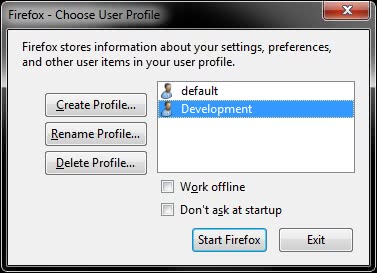
Run it. The profile manager will appear, create a new profile. (I'll call mine "Development")
Edit your new shorcut, remove the " –profilemanager " fragment and add " -P "Development" -no-remote ". With this, you force Firefox to load a specific profile (without prompting) while allowing multiple instances (beware, one per profile only).
With this, we have both profiles ready to use. But to avoid nasty caching surprises (of which Firefox is a common troublemaker), I encourage also to fully disable the cache:
Type "about:config" in the URL bar. Search for "browser.cache.disk.enable" and "browser.cache.memory.enable" and set them to false.
And perfect! Now you can install all development addons on it and perfectly refresh Javascript and CSS changes with a simple F5 without worrying about caching issues.