Title: Using Windows Live Writer with Kartones.Net (Community Server 2.1)
Slug: using-windows-live-writer-with-kartones-net-community-server-2-1
Date: 2007-04-13 11:25:00
Author: Kartones
Lang: en
Tags: Kartones.Net, Social, Tools
Description: A guide on setting up Windows Live Writer with Kartones.Net (Community Server 2.1).

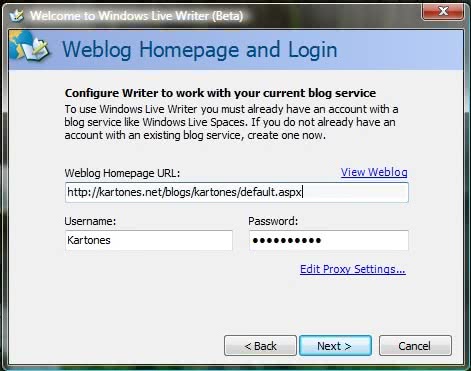
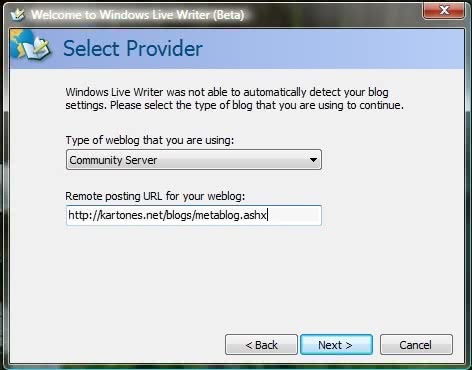
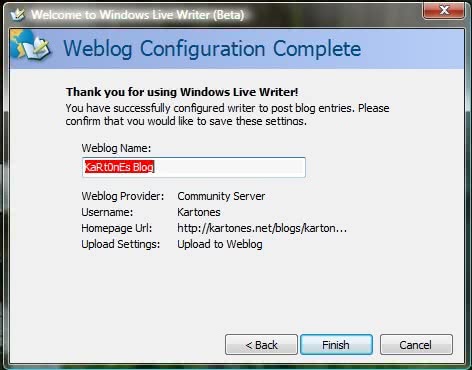
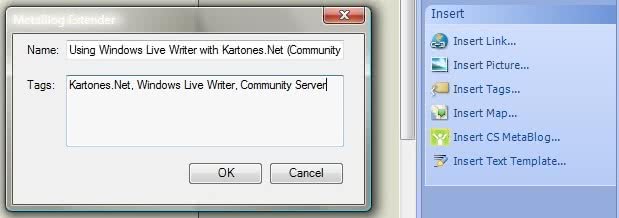
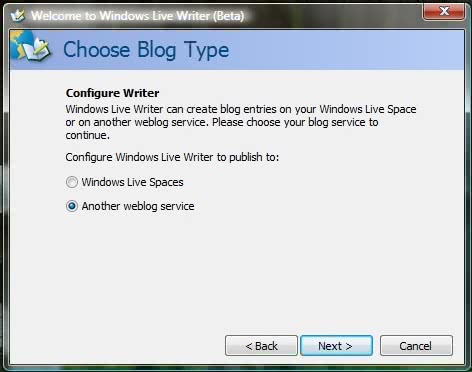
 <p>As you may have noticed, these past days the portal has been offline most of the time. My hosting provider had a hardware failure, and the worst part is that they lost the data and had to restore a backup from the 10th of april. While may not be too much, We've lost 4 or 5 posts, plus 4 "concept posts" I had saved (but not published) as ideas to expand. Also, the phpBB forum I'm hosting for my friends (<code>http://foros.berksworlds.com/</code>) had configuration changes, a <acronym title="phpBB modification">MOD</acronym> installed, and heavily used (around 4k page visits per day and people is still coming and registering from the old forum)</p><p>So, to prevent further disasters, here are the instructions to setup the fantastic <a href="https://en.wikipedia.org/wiki/Windows_Live_Writer">Windows Live Writer tool</a> to have local copies of our posts while posting in this portal (or any <acronym title="Community Server">CS</acronym> 2.1 portal ;)</p><p>After installing <acronym title="Windows Live Writer">WLW</acronym> or choosing to add a new weblog account, we choose <i>another weblog service</i>.</p><p><img title="Windows Live Writer configuration" alt="Windows Live Writer configuration" src="https://images.kartones.net/posts/screenshots/windowslivewriter_csconfig01.jpg"></p><p>Our weblog full URL, and our portal username and password.</p><p><img title="Windows Live Writer configuration" alt="Windows Live Writer configuration" src="https://images.kartones.net/posts/screenshots/windowslivewriter_csconfig02.jpg"></p><p>It won't get our settings so we chose <i>Community Server</i> and put the host name at the start of the url.</p><p><img title="Windows Live Writer configuration" alt="Windows Live Writer configuration" src="https://images.kartones.net/posts/screenshots/windowslivewriter_csconfig03.jpg"></p><p>And finally give it a name :)</p><p><img title="Windows Live Writer configuration" alt="Windows Live Writer configuration" src="https://images.kartones.net/posts/screenshots/windowslivewriter_csconfig04.jpg"></p><p>We can use <b>F11</b>, <b>Ctrl+F11</b>, <b>Shift+F11</b> and <b>F12</b> to switch between views and control precisely how the post will look when published.</p><p>Also, I've installed <strong>Scott Water's CS Module</strong> to enable using the <a" href="http://scottwater.com/blog/archive/My-CS-LiveWriter-Plugin/">CS MetaBlog plugin for Live Writer</a>, that allows to change our post name and/or the associated tags (which is what I wanted, to be able to add new tags from Live Writer).</p><p><img title="CS MetaWeblog plugin" alt="CS MetaWeblog plugin" src="https://images.kartones.net/posts/screenshots/windowslivewriter_csmetaweblog.jpg"></p><p><b>Note #1</b>: For Kartones.Net bloggers, just remind you that you've got a ftp account to upload images of your posts and then link to them from here ;)</p><p><b>Note #2</b>: Apart from Windows Live Writer, which is free, this post has been made with <a" href="http://www.faststone.org/FSCaptureDetail.htm">Faststone Capture</a> (for capturing screenshots, free for home/personal use) and <a" href="http://www.getpaint.net">Paint.NET</a> (opensource alternative of Adobe Photoshop, and better <acronym title="in my humble opinion">IMHO</acronym> than <a" href="http://www.gimp.org/">GIMP</a>). No need of commercial software ;)</p>