Title: Configure Exchange RPC over HTTP
Slug: configure-exchange-rpc-over-http
Date: 2007-12-07 07:04:00
Author: Kartones
Lang: en
Tags: Systems-IT, Windows, MS Exchange, MS Outlook
Description: A guide on configuring Exchange RPC over HTTP for accessing your Microsoft Exchange mail account in Outlook from outside the office.
Small auto-reminder post for the future: How to configure a Microsoft Exchange mail account in Outlook to work with RPC over HTTP (which means, to access your exchange account from outside your office).
Close Outlook and go to Control Panel -> Mail
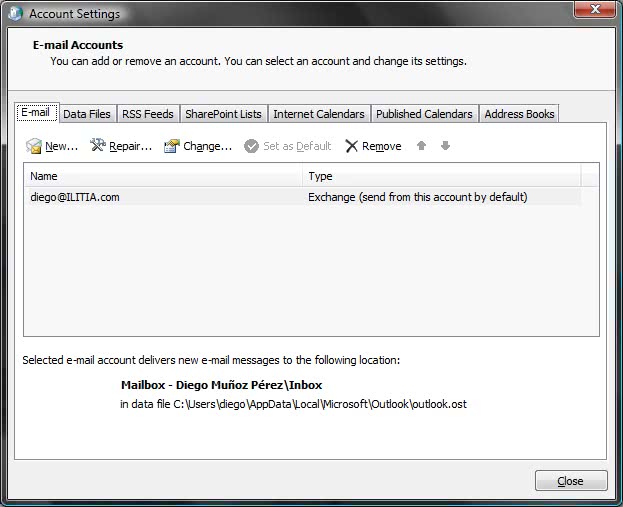
Email Accounts -> Choose your Exchange account -> Change
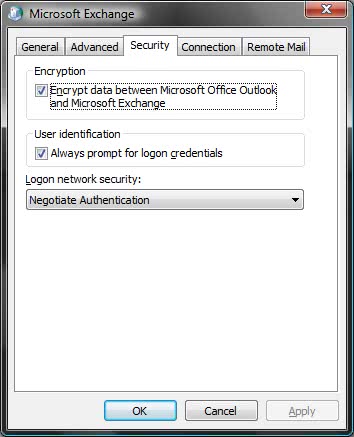
More Settings -> Check the Security tab
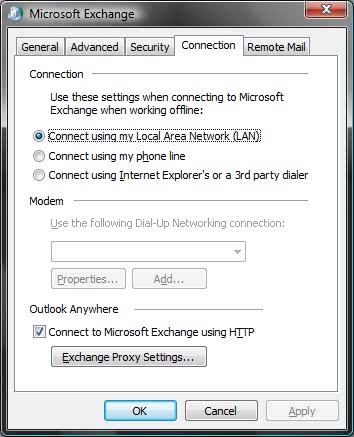
Connection tab -> Check Connect to Microsoft Exchange using HTTP
Click the Exchange Proxy Settings button
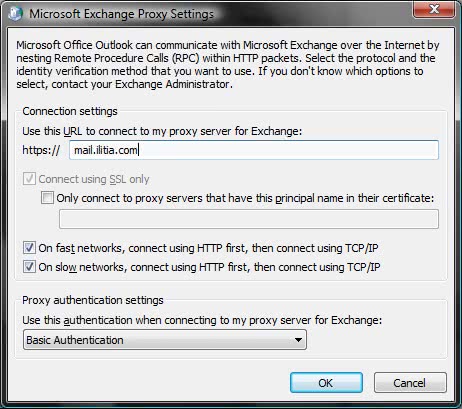
Write your proxy server url, check your desired options of HTTP-TCP/IP preferences, and select Basic Authentication.